
Gmail clipped message: why it happens and how to fix it
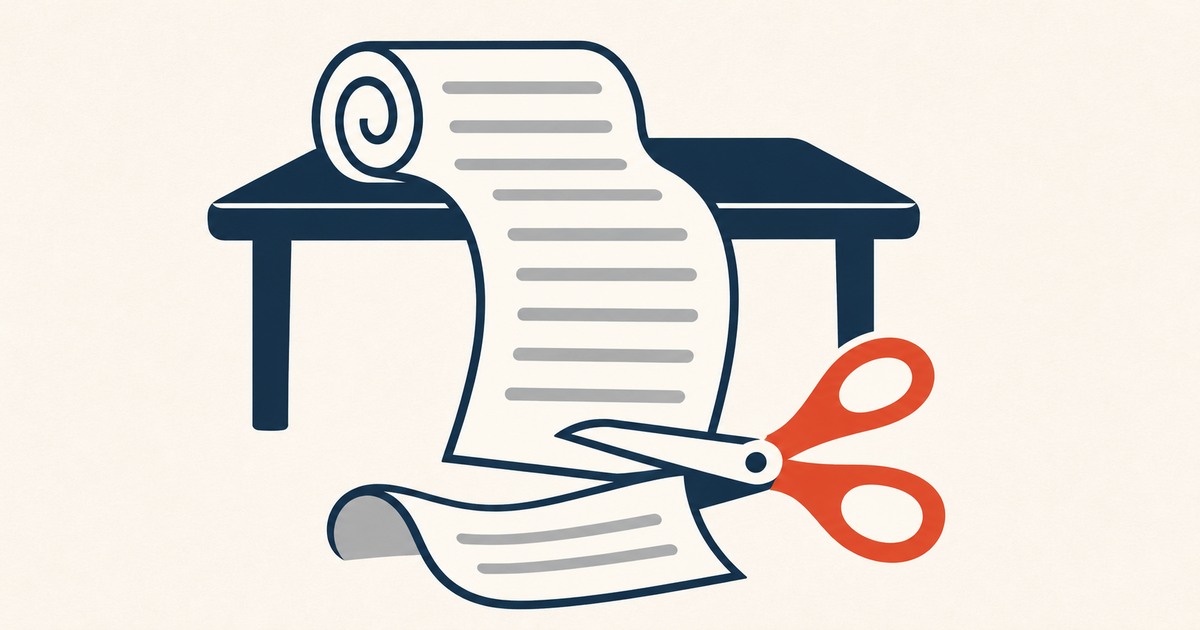
Gmail clips any email whose HTML code is larger than about 102 KB. It shows the first part and replaces the rest with "[Message clipped] View entire message". The hidden part usually includes your footer and unsubscribe link. Images do not count toward the limit; the HTML code does, so lighter code fixes it.
You send a long issue, open it in Gmail, and near the bottom the content stops. In its place: "[Message clipped] View entire message." Most readers will never click it. Everything below that line, often including your sign-off, your sponsor and your unsubscribe link, has effectively disappeared.
What exactly is clipped
Gmail measures the size of the email's HTML code. Once it passes roughly 102 KB, Gmail displays the first part and cuts the rest, with a link to open the full message in a separate view.
Three things are important to understand:
- It is the code, not the images. Images are loaded from their own addresses and do not count. A short issue with bloated code can be clipped, and a long, lean one may not be.
- The footer goes first. Because the footer is at the end, it is the part most often hidden. That means the unsubscribe link and your postal address disappear for those readers.
- Open tracking can break. Many platforms place the tracking pixel near the end of the email. If it is clipped, opens from those readers may not be counted, so your open rate looks lower than it is.
Why newsletters get so heavy
The writing is rarely the problem. A long essay of 2,000 words is only a few kilobytes of text. The weight comes from code:
- Drag-and-drop builders wrap every element in several layers of tables and repeat the same inline styles on every one.
- Inline styles duplicated on every paragraph, link and cell.
- Tracking links. Platforms rewrite every link into a long tracking address. An issue with dozens of links adds up quickly.
- Leftover code: comments, hidden blocks, unused sections from an old template.
- Copying from word processors, which brings their own formatting code along.
How to check your size
The simplest way is to measure the final HTML file. If your platform lets you export or view the HTML of an issue, save it and look at the file size. Remember that tracking links are often added at send time, so the sent version can be heavier than the one in the editor. Leave yourself a margin.
Every template page on this site shows its exact weight, measured from the file you download, and how close it is to the 102 KB line.
How to bring it down
- Start from a lean template. It is far easier to stay light than to slim a heavy design down. Our templates weigh between 2 and 9 KB.
- Remove unused sections and comments from your template.
- Move repeated styles into the head where your clients support it, and keep inline only what needs to be inline.
- Cut the number of links. Each one becomes a long tracking address.
- Split very long issues, or link to the full version on your website.
- Avoid pasting from a word processor. Paste as plain text and format inside your platform.
Frequently asked questions
Is the 102 KB limit exact?
It is the figure widely documented for Gmail and consistent across tests, but Google does not publish an official specification for it. Treat it as a ceiling and stay well below it, especially because tracking links are added after you finish editing.
Do other email clients clip messages?
Gmail is the one known for clipping by size. Other clients have their own limits on very large messages, but in practice the Gmail limit is the one a newsletter needs to respect.
Does clipping affect deliverability?
Not directly, but it hides your unsubscribe link from readers who do not open the full message. When people cannot find the way out, more of them press the spam button, and complaints do affect deliverability.
Sources
- MxToolbox, What is email message clipping?
- ActiveCampaign, Why is Gmail "clipping" my email?